
If you use Google AdSense, sooner or later you will see a warning in your account that says Earnings at risk: you need to fix some ads.txt file issues to avoid severe impact to your revenue. The message looks alarming, but the fix is simple. You need to create a small text file called ads.txt and place it in the root folder of your website. In this guide you will learn what an ads.txt file is, why Google asks for it, how to get your own line of code from AdSense, three different ways to add the file to a WordPress site, and how to check that everything works.
Wording and screens in the AdSense interface change from time to time, so your account may look slightly different from the screenshots below. The steps and the file format stay the same.
Table of Contents
What Is an ads.txt File?
ads.txt stands for Authorized Digital Sellers. It is a plain text file that a publisher places on their own domain to declare which advertising companies are allowed to sell the ad space on that website. The standard was created by the IAB Tech Lab to fight ad fraud, such as fake websites that pretend to be a well-known publisher in order to collect advertising money.
When an advertiser or ad platform is about to buy space on your site, it can fetch yourdomain.com/ads.txt and check whether the seller is on your approved list. If the seller is listed, the buyer can trust the sale. If your file is missing or incomplete, some buyers may skip your inventory, which reduces competition for your ad slots and can lower your earnings.
Only the person who controls the domain and hosting can upload this file to the root directory. That is what makes it a reliable signal: nobody else can add themselves to your list.
Why AdSense Shows the Ads.txt Warning
Google shows the warning when its crawler cannot find a valid ads.txt file on your domain, or when the file does not contain the line for your AdSense publisher account. The most common causes are:
- You never created the file.
- The file exists but it is empty, or it contains the wrong publisher ID.
- The file was uploaded to a subfolder instead of the root of the domain.
- The file has the wrong name, for example
ads.txt.txtorAds.TXT. - The file returns an error page (HTML) instead of plain text because of a redirect, a security plugin or a caching problem.
- You moved to a new domain, changed hosting or reinstalled WordPress and the old file was lost.
What You Need Before You Start
- Admin access to your WordPress dashboard.
- Access to your Google AdSense account.
- Optionally, access to your hosting control panel such as cPanel.
Step 1: Get Your ads.txt Line From AdSense
Sign in to AdSense and look for the ads.txt warning in your account. It usually appears as a banner or in the Sites section next to the domain. Click Fix now or the equivalent link next to the ads.txt notice.

You will be taken to a page that explains the issue and gives you a snippet of code to copy or a file to download.

If you download the file and open it in a text editor, you will see one line that looks like this:
google.com, pub-0000000000000000, DIRECT, f08c47fec0942fa0
The line has four parts separated by commas:
- google.com is the advertising system that is allowed to sell your space.
- pub-0000000000000000 is your own AdSense publisher ID. Yours will have different numbers. Never use the number from this example.
- DIRECT means you have a direct account with that system.
- f08c47fec0942fa0 is Google’s certification authority ID. It is the same for every AdSense publisher.
Copy this line exactly as it appears in your account. You will paste it into your ads.txt file in the next step.
Step 2: Add the ads.txt File to Your Website
There are three common ways to do this. Choose the one that fits your setup.
Method 1: Use an ads.txt plugin (easiest)
If you would rather not touch files at all, use a plugin that manages the file for you. The Ads.txt Manager plugin adds a settings screen where you paste your lines, and it serves the file at the correct address without you having to create anything on the server.
- Go to Plugins > Add New in your WordPress dashboard.
- Search for Ads.txt Manager, click Install Now and then Activate.
- Open the plugin’s settings page (look under Settings or Tools, depending on the version).
- Paste your line from AdSense into the text box.
- Click Save Changes.
The plugin handles the correct file type and location. If you later add another advertising network, add its lines in the same box.
Method 2: Create the file with a file manager plugin
This method uses a file manager plugin to create the file inside WordPress. It is helpful if you do not have access to your hosting panel.

- Go to Plugins > Add New and search for a file manager plugin such as File Manager. Install and activate it.
- After activation, a new menu item appears in your dashboard.
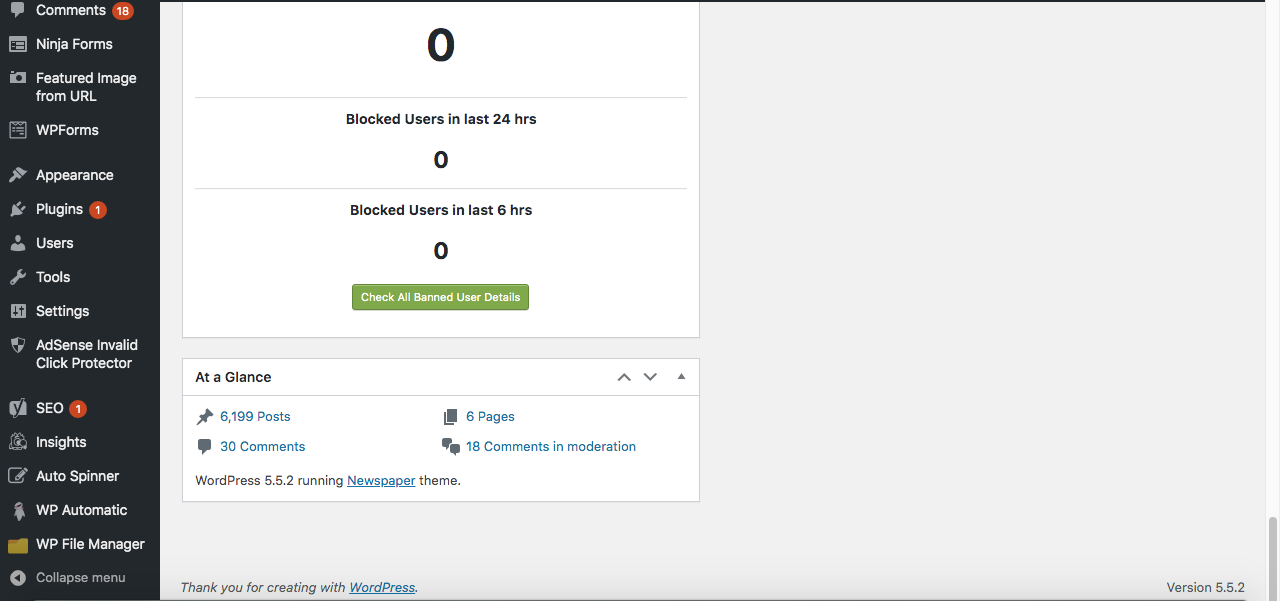
- Open the plugin’s file manager screen.

- Go to the root folder of your website. This is the folder that contains
wp-admin,wp-contentandwp-includes. - Choose the option to create a new file, select the plain text type and name it exactly
ads.txt. - Open the empty file in the editor, paste your AdSense line, and save it.
When you are finished, deactivate and delete the file manager plugin. A plugin that can edit every file on your server is a security risk when you are not using it.
Method 3: Create the file in your hosting control panel (cPanel)
This is the most direct method and does not need any plugin.
- Log in to your hosting account and open the control panel.
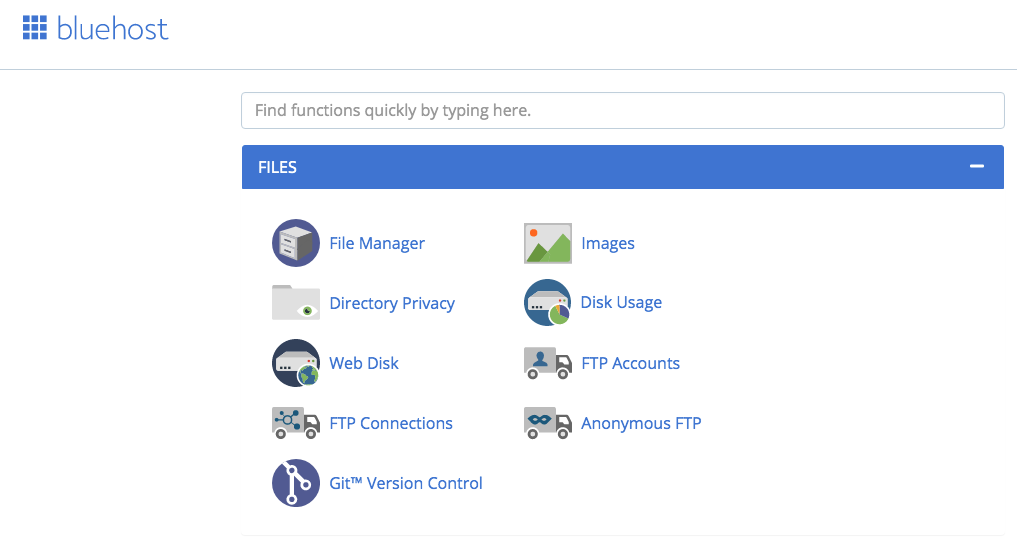
- Open the File Manager.
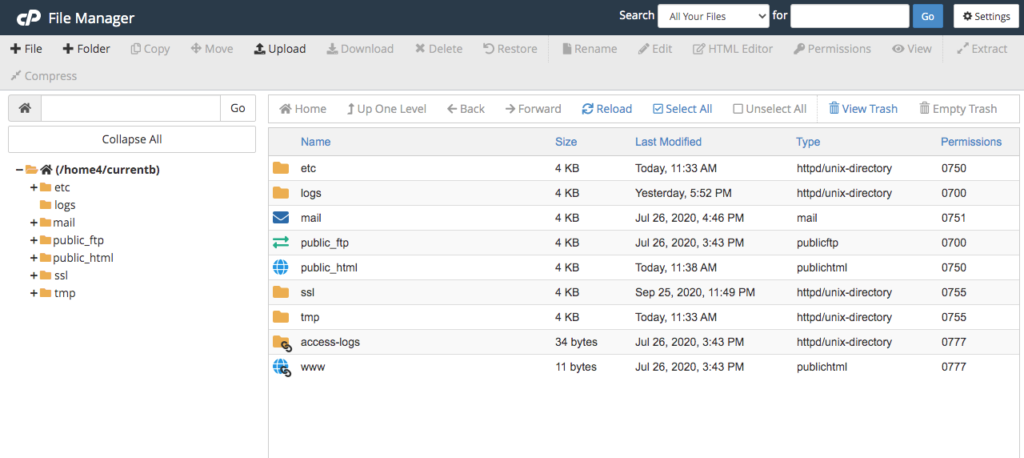
- Open the
public_htmlfolder and then the folder of your domain. Inside you will see the WordPress folders such aswp-admin,wp-contentandwp-includes. If your site is the main domain, the root is normallypublic_htmlitself.
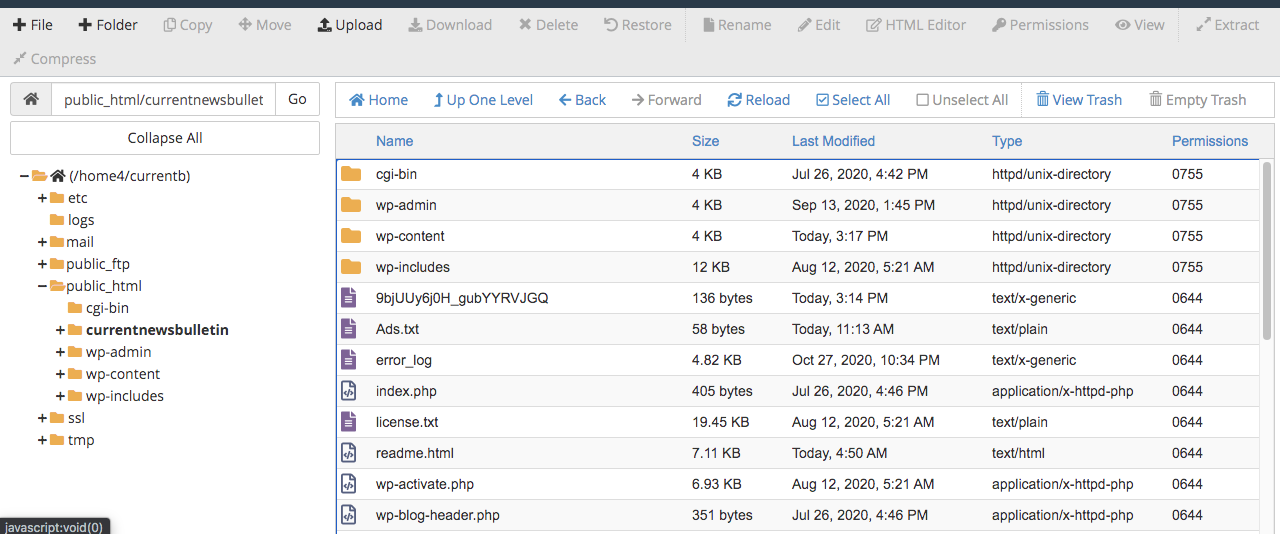
- Click + File to create a new file.

- Name the file
ads.txtand click Create New File.

- Right-click the new file, choose Edit and paste your line into the empty editor. Click Save Changes.
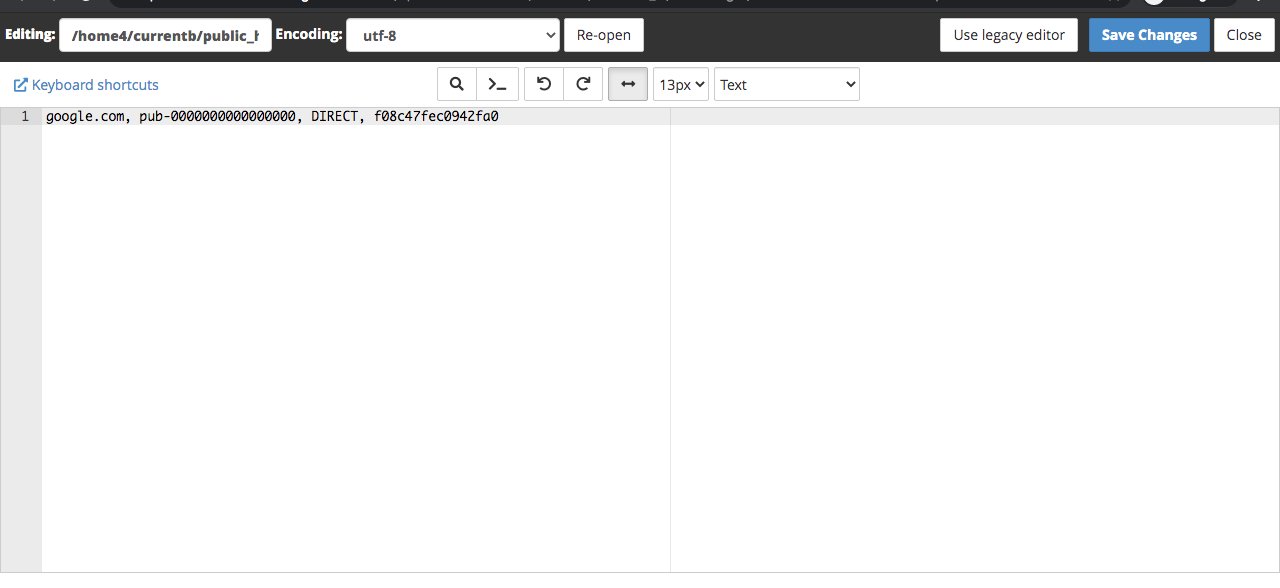
Your ads.txt file is now live. If you have a staging site, a subdomain or several domains, each one needs its own file placed in its own root.
Step 3: Check That the File Works
- Open it in a browser. Type
https://yourdomain.com/ads.txt. You should see plain text with your line and nothing else, no theme, no menu and no error message. - Check the address variants. Test with and without
www. A redirect from one to the other is fine as long as both lead to the same file on the same domain. - Clear caches. Purge your caching plugin, server cache and any CDN so that the crawler receives the latest version.
- Check the status in AdSense. Open the Sites section and look at the ads.txt status for your domain. Google needs to crawl the file again, so the warning can take from a few hours to a day or more to change to Authorized.
Adding More Advertising Partners
If you use AdSense alongside another ad network or a header bidding partner, each partner will give you its own lines to add. Add every line on a new row in the same ads.txt file. Copy the lines exactly as the partner provides them, and only from the partner’s official dashboard or documentation. Never paste lines you found on a random website, because you would be authorising sellers you do not know.
Common Ads.txt Problems and How to Fix Them
The file shows a 404 error
The file is in the wrong folder or has the wrong name. Confirm it is called exactly ads.txt in lowercase and sits in the root of the domain. If you use the Ads.txt Manager plugin, check that a physical file with the same name does not conflict with it.
The file shows HTML or a page design
Something on your server is returning a page instead of the text file. This can happen with security plugins, maintenance mode plugins or a wrong rewrite rule. Disable maintenance mode and test again.
AdSense says the publisher ID is missing
The line in the file does not match your AdSense account. Compare the pub number in your file with the publisher ID in AdSense, and fix any typing mistake or extra character.
AdSense still shows the warning after the fix
Google has not crawled the file again yet. Wait 24 hours, clear all caches and confirm the file loads. If your site is very new or receives little traffic, the crawler may take longer.
The file was lost after moving hosting
Ads.txt is a normal file and is not stored in your database. It is not always included in a database-only backup. After a migration, check that the file still exists in the root folder.
Extra characters or formatting
The file should be plain text encoded as UTF-8. Do not save it from a word processor, because hidden formatting can break it. Each entry goes on its own line, with no spaces at the start of the line.
Best Practices
- Keep only lines you understand and trust. Remove lines for networks you no longer use.
- Keep a copy of the file in your notes so you can recreate it quickly.
- Check ads.txt again after every migration, domain change or major security plugin change.
- Do not use
#comments to store private information, because the file is public. - Check the AdSense help centre from time to time for changes to the ads.txt process.
How an ads.txt File Is Built: Reading Every Field
An ads.txt file looks tiny, but every character matters. Each line is a record with up to four fields separated by commas, and it always follows the same order:
advertising-system-domain, publisher-account-id, relationship, certification-authority-id
- Advertising system domain. The domain of the ad platform that sells your inventory, for example google.com for AdSense and Google Ad Manager.
- Publisher account ID. Your unique account number in that system. For AdSense it begins with pub-. This is the one part that is different for each publisher.
- Relationship. Either DIRECT or RESELLER. DIRECT means you own the account and control who is authorised to sell your inventory. RESELLER means you have authorised another company to sell your inventory through its account.
- Certification authority ID. An optional identifier that ties the platform to a certification body. Google’s ID is f08c47fec0942fa0, and the same value appears on every Google line.
You can also write comments. Everything after a # on a line is ignored by the crawler, which is handy for keeping notes about which line belongs to which partner. The file is public, so never write anything private in a comment.
What a file with several partners looks like
A site that uses AdSense and one other partner might have a file like the example below. The account numbers here are made-up placeholders, so do not copy them.
# AdSensegoogle.com, pub-0000000000000000, DIRECT, f08c47fec0942fa0# Example partnerexample-adnetwork.com, 12345, RESELLER, abcdef1234567890
Every partner gives you its own lines in its dashboard or in its publisher documentation. Add them exactly as given. If a partner asks you to add a line and you cannot find it in an official document from that company, do not add it.
ads.txt, sellers.json and app-ads.txt: How They Fit Together
ads.txt is one part of a small system created by the IAB Tech Lab to make programmatic advertising more transparent. Two related files are worth knowing about.
- sellers.json is published by the advertising platforms, not by you. It lists the sellers and intermediaries that the platform works with. A buyer can compare your ads.txt with the platform’s sellers.json to confirm that the account named in your file exists and is what it claims to be.
- app-ads.txt is the equivalent of ads.txt for mobile and connected TV apps. It is placed on the developer website listed in the app store entry. If you only run a WordPress site you do not need it.
Together these files make it harder for fraudsters to pretend to be you, because both the publisher and the platform have to agree who is allowed to sell your space.
Where Exactly Does Google Look for the File?
Crawlers look for the file at the root of your domain, for example https://example.com/ads.txt. A few details help to avoid confusion:
- The file is read from the root domain. A copy in a folder such as
/blog/ads.txtis not used. - If your site opens on the www version, a redirect from
example.com/ads.txttowww.example.com/ads.txtis generally accepted, because both belong to the same registered domain. Keep the redirect to a single step. - The file has to be available over HTTP or HTTPS and must return a successful response, not a login page, a maintenance page or an error.
- Subdomains such as
blog.example.comare normally covered by the file on the root domain, unless you use the subdomain directive defined in the ads.txt specification to point a subdomain to a different file. Most WordPress sites never need this. - If you run several separate domains, each one needs its own file with its own lines.
Extra Problems With Plugins, Hosting and CDNs
A plugin and a physical file at the same time
If you created a real ads.txt file in the root folder and you also use a plugin that generates the file, the two can conflict. When a physical file exists, the web server usually serves that file first and the plugin is never reached, which means that the lines you type in the plugin do not appear. Choose one method and remove the other.
Security and firewall plugins
A firewall, a maintenance mode or a coming soon plugin may show its own page to the crawler instead of your file. If the address opens fine when you are logged in but returns HTML or an error for a private window, check these plugins first.
Caching and CDN services
Cache plugins and CDNs can keep an old copy of the file for a long time. After you edit the file, clear the plugin cache, the server cache and the CDN cache. If your CDN offers a page rule or cache rule, make sure it does not rewrite plain text files or add an HTML wrapper.
File permissions and encoding
The file has to be readable by the web server. On most hosts the permission value 644 is correct for a text file. Save it as plain text with UTF-8 encoding and use standard line endings. Do not use a word processor, because it may add hidden characters or replace straight quotes and dashes.
Multisite and staging copies
On a WordPress multisite network, each site with its own domain needs its own file. On a staging or development site, do not copy the live ads.txt file unless the staging site is blocked from search engines and from ad serving, because a test copy can create confusing reports.
Keep the File Safe: Ads.txt Hijacking
Because the file decides who may sell your ad space, criminals have a reason to attack it. In a hijack, someone who gained access to your site adds their own lines to the file so that their accounts can sell your inventory and collect the money. Your traffic and content are used, but the revenue does not reach you. To reduce the risk:
- Use strong, unique passwords and two-factor authentication for WordPress, your hosting account and your AdSense account.
- Keep WordPress, plugins and themes updated, and remove those that you no longer use.
- Do not install cracked or pirated plugins and themes, which are a common route for malware.
- Open your ads.txt address from time to time and read every line. Remove any line that you did not add or do not recognise.
- Limit who has administrator access to the site and the server.
If you find unknown lines, delete them, change your passwords, scan the site for malware and review your AdSense payment and account settings for changes.
How to Read the ads.txt Status in AdSense
In AdSense, the Sites section shows the ads.txt result for each domain. The exact labels change from time to time, but they follow the same logic:
- The file is found and includes your publisher ID. Everything is fine and no action is needed.
- The file is not found. The crawler could not read a file at your root address. Check the location, the name, redirects and caches.
- The file is found but your publisher ID is missing. The file exists but does not include the correct Google line. Compare it with the line in your account.
- A recent change is not yet processed. If you have just fixed the file, the status may take some time to update, so give the crawler time before you change anything else.
If a status stays wrong for several days even though the address opens correctly, look at the page source of the address in a private window, and confirm that the page is plain text and does not have a hidden redirect.
A Simple Maintenance Routine
Ads.txt does not need daily attention, but a short routine keeps it healthy.
- Once a month: open the file in a private window and read it. Check that it loads quickly and contains only the lines you expect.
- After every change of host, domain, theme or major plugin: test the address again and check the AdSense status.
- When you add or drop an ad partner: add its lines, or remove the old lines when you stop working with it, and note the date in a comment.
- Every few months: log in to AdSense and read the Sites and Policy messages, so that you do not miss a warning.
- Keep a backup: store a copy of the file in a safe place in case you need to recreate it.
Quick Troubleshooting Checklist
- Does
https://yourdomain.com/ads.txtopen in a private window and show plain text only? - Is the file named exactly
ads.txtin lowercase, with no second extension? - Does the line contain your own publisher ID and the correct Google certification ID?
- Are there no spaces at the start of the line and no unusual characters?
- Is there only one method active, either a plugin or a physical file?
- Have you cleared the plugin, server and CDN caches?
- Does the address respond with a normal success status and not an error or a login page?
- Are all your domains and their versions (with and without www) leading to the same file?
Frequently Asked Questions
Is ads.txt required for AdSense?
Google strongly recommends it. AdSense may show an earnings warning when the file is missing, and some buyers only buy inventory from sites that have a valid file.
Where exactly should the file go?
In the root directory of your domain, so that it loads at yourdomain.com/ads.txt. A file inside a folder such as /wp-content/ will not be found.
Can I add more than one line?
Yes. You can add as many lines as you have partners, with one entry per line.
Do I need a plugin?
No. You can create the file yourself in cPanel or an FTP tool. A plugin is just a convenient option if you prefer not to edit files.
How long does it take for the AdSense warning to disappear?
Usually from several hours to a couple of days after the file is correct and reachable.
Will ads.txt increase my earnings?
Not directly. It protects your ad inventory from fraud and lets legitimate buyers trust your site, which prevents lost revenue caused by a missing file.
Conclusion
Adding an ads.txt file takes only a few minutes and removes one of the most common warnings in AdSense. Copy the exact line from your AdSense account, place it in a file called ads.txt in your site’s root, confirm it loads in the browser, and give Google time to crawl it again. Whether you use a plugin, a file manager or your hosting panel, the result is the same: a public list that shows advertisers your site is genuine.
Practical Planning and Verification
Use this information as a structured starting point rather than as a promise of a particular outcome. Begin by identifying the exact requirement and then check the current source responsible for it. Important details can vary by date, location, provider, eligibility, account type and individual circumstances.
Before taking action
Make a checklist of the information, documents, costs and deadlines that apply. Keep records of important submissions and confirmations. If a process involves money, employment, education, insurance, immigration, advertising or another regulated area, confirm the final details through the relevant official or qualified source.
Compare options carefully
If several options are available, compare their requirements, limitations, total costs and practical time involved. Avoid relying on claims that promise guaranteed approval, guaranteed income or instant results. A realistic explanation should include conditions and possible limitations.
Protect your information
Keep passwords, authentication codes, payment credentials and private identity documents secure. Do not publish sensitive information in screenshots or comments simply to demonstrate a process. When examples are needed, use fictional or redacted information.
Keep changing information current
Websites, prices, policies, software interfaces and eligibility rules can change. Check the date of important information and revisit time-sensitive sections before relying on them. If two sources conflict, compare their dates and authority and contact the responsible organization when necessary.
Final checklist
- Define the exact goal.
- Check current authoritative requirements.
- Confirm dates, costs and eligibility.
- Prepare accurate documents and information.
- Keep important records.
- Protect sensitive data.
- Review the final result.
Frequently Asked Questions
Can a general article guarantee my result?
No. Individual circumstances and third-party decisions can affect the outcome.
What if I find conflicting information?
Compare the publication dates and the authority of the sources, then confirm important points with the responsible organization.
Why is verification important?
It reduces the risk of following outdated instructions or misunderstanding a requirement that has changed.
Conclusion
The most useful long-form information combines clear explanations with practical preparation, realistic limitations and current verification. Use the article to understand the subject, then confirm important details before making a consequential decision.